
📋 Requirements
- WindowsiRacing only runs on Windows, so the overlays live there too. (iCASControl's simulator and replay modes also run on macOS and Linux.)
- Python 3.10+From python.org — tick “Add Python to PATH” during install.
- iRacingRunning on the same machine, with a session loaded.
- OBS StudioOr any tool that supports browser sources, for the stream.
📥 Install
git clone https://github.com/halvar20000/iracing-overlays.git
cd iracing-overlays
pip install -r requirements.txt
That's it. The dependencies are Flask, pyirsdk, Pillow, requests and (Windows only) pywin32.
▶ Run the overlays
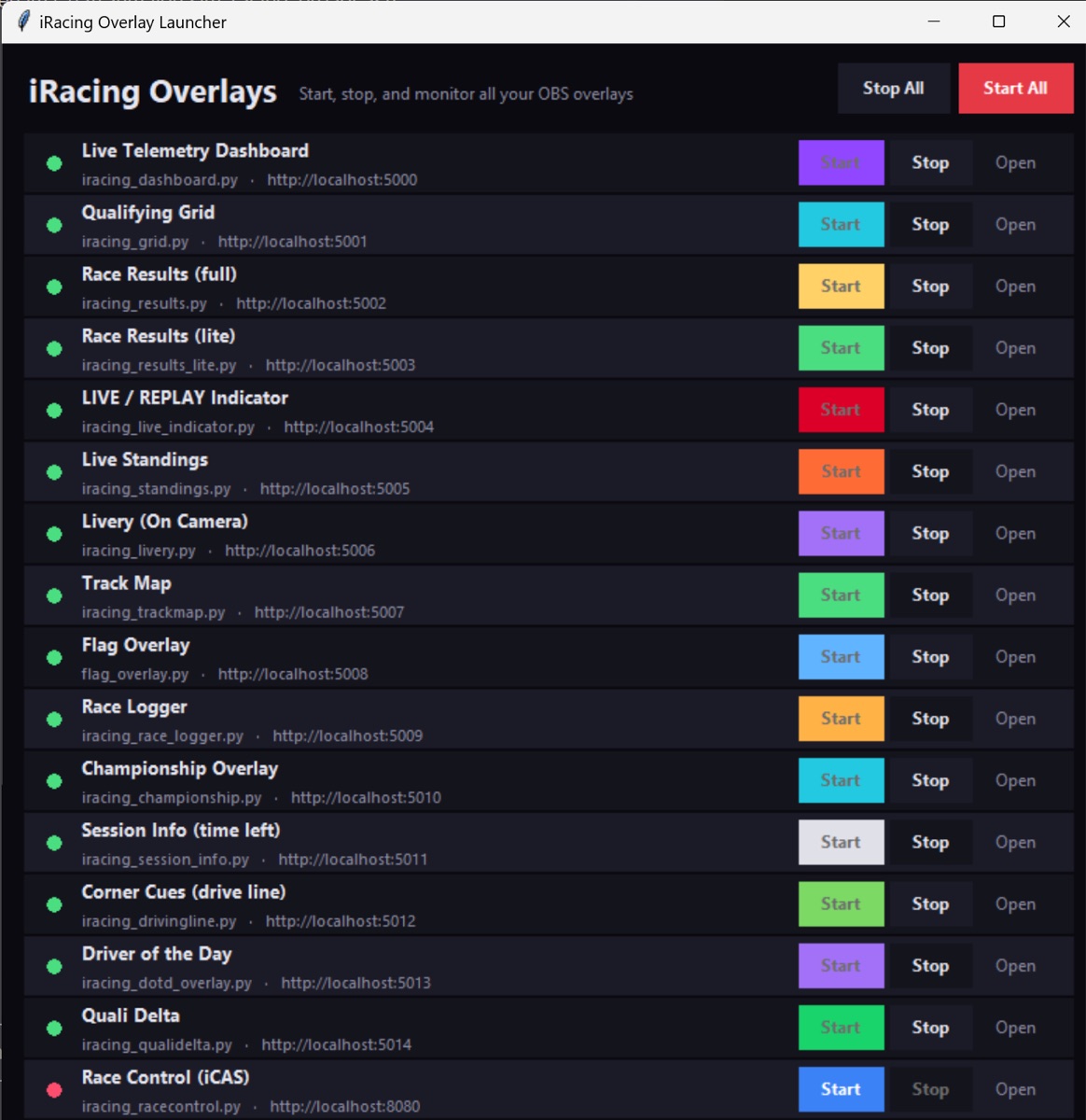
GUI launcher
Double-click launch_gui.bat. A small desktop app opens with a Start/Stop button and status dot per overlay, plus Start All / Stop All and a log pane.
Batch launcher
Run launch_all.bat to start every overlay in its own console window — no GUI, just go.
Single command
Run python launch_all.py to start all overlays in one terminal with colour-coded log prefixes. You can also run any single overlay directly, e.g. python iracing_standings.py.
🎬 Add overlays to OBS
- 1. Start the overlays you wantEach runs on its own port — e.g. 5005 for standings, 5007 for the track map.
- 2. Add a Browser sourceIn OBS: Sources → + → Browser, URL
http://localhost:<port>. - 3. Toggle transparent stream modeMost overlays start with a dark debug background. Click into the browser source (Interact) and press H to switch to the transparent stream mode. The Live Indicator and Flag overlays are always transparent.
The overlays bind to 0.0.0.0, so a second PC on your LAN can reach them at http://<your-ip>:<port> — handy for a dedicated streaming PC.
Self-healing browser sources — no manual refresh
OBS loads each browser source once at startup; if the overlay server isn't running yet, the source stays blank until you hit Refresh. To avoid this, use the loader pages in obs_loaders/: in the browser-source properties, tick Local file and pick e.g. obs_loaders/standings.html instead of typing a URL. The loader retries automatically until the server responds — start order no longer matters, and overlays come back on their own after a restart. Regenerate the loaders with python make_obs_loaders.py after adding a new overlay.
🗺 Offline track map & optional sharing
- Offline track libraryThe track map needs no iRacing login and no internet — geometry for ~300 configurations is bundled in
tracks/as JSON. If a track isn't bundled it shows a friendly “TRACK MAP NOT BUNDLED” message. Geometry comes from the SIMRacingApps library (Apache 2.0) and OpenStreetMap (ODbL). - Car brand logosThe standings overlay shows manufacturer logos from
brands/*.svg. To add a brand, dropbrands/<slug>.svginto the folder and, if needed, add a prefix mapping incar_brands.py. - Optional public sharingThe race logger has read-only public endpoints (
/share/chart,/share/standings) so Twitch/Discord viewers can open a self-service chart. Expose them with a free Cloudflare Tunnel — only/share/*paths are served remotely; all admin endpoints stay local.
🔧 Troubleshooting
- “Waiting for iRacing”iRacing must be running with a session loaded, not just the UI.
- Changed a script but see old behaviourOverlays keep the old code in memory — restart the overlay.
- Black box instead of transparency in OBSPress H in the browser source (Interact) to toggle stream mode.
- Port already in useAnother overlay or app owns that port; each script's port is set at the bottom in
app.run(...).